Admin UI Policy Management#
Security > Admin UI Policy Management lists every Cedarling Policy Store held by the Admin UI backend and controls which one governs GUI access control.
One store is active at a time. The active store supplies the schema, policies and role-to-scope mappings that decide what each administrator can see and change. Every other store is retained as a backup, so a previous configuration can be restored by activating it again.
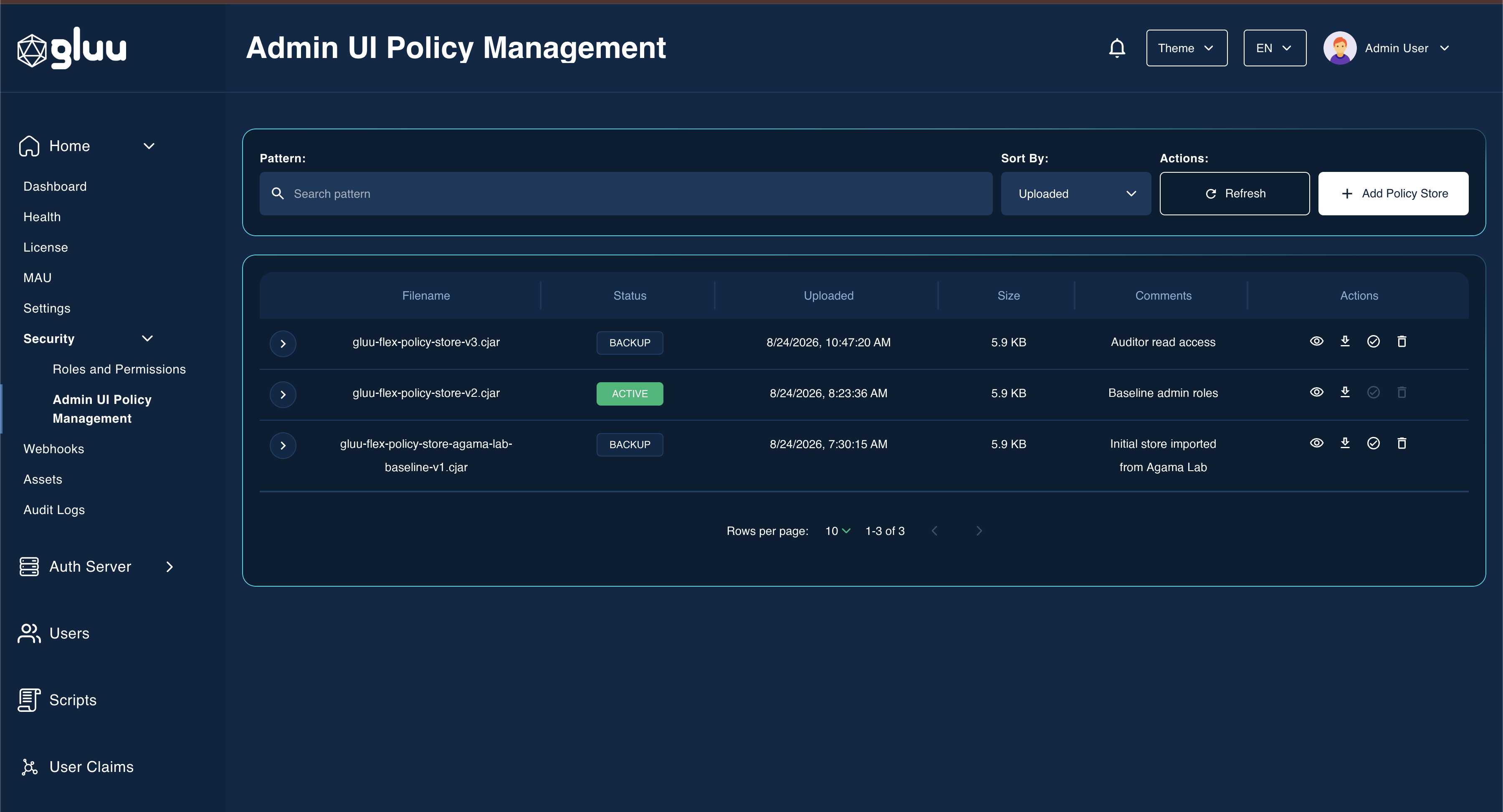
Policy store list#
| Column | Description |
|---|---|
| Filename | Name of the uploaded .cjar archive |
| Status | ACTIVE for the store in force, BACKUP for the rest |
| Uploaded | Date and time the store was added |
| Size | Size of the stored archive |
| Comments | Description supplied when the store was uploaded |
Search by pattern, sort by uploaded date, name or status, and page through the list using the toolbar above the table.
Adding a policy store#
Add Policy Store button opens the upload screen, which accepts a .cjar archive produced by Agama Lab's Policy Designer. See Steps to create and upload Policy Store archive file.
A newly uploaded store is stored as a backup. It has no effect on access control until it is activated.
Activating a policy store#
On click of Set active action button, it promotes a backup to the active store. The action is unavailable on the store that is already active.
Activation runs in two steps:
- A confirmation dialog states that activating restarts the system, triggers the webhooks registered against the
policy_store_writefeature, and signs you out of the Admin UI. - A commit dialog collects a comment describing the change. The comment is between 10 and 512 characters and is written to the audit log.
On success the Admin UI:
- Marks the selected store active and the previously active store a backup
- Regenerates the role-to-scope mappings from the newly active store. A failed regeneration is logged and does not block the activation
- Triggers any enabled webhooks mapped to
policy_store_write - Signs you out after three seconds
Sign in again to pick up the permissions defined by the new store.
Deleting a policy store#
Delete permanently removes a backup store. The action is unavailable on the active store, so access control cannot be left without a policy source.
Deleting collects a comment on the same terms as activation, records it in the audit log, and triggers any enabled webhooks mapped to the policy_store_delete feature.
Downloading a policy store#
Download saves the stored archive to your machine under the filename it was uploaded with.
Viewing archive contents#
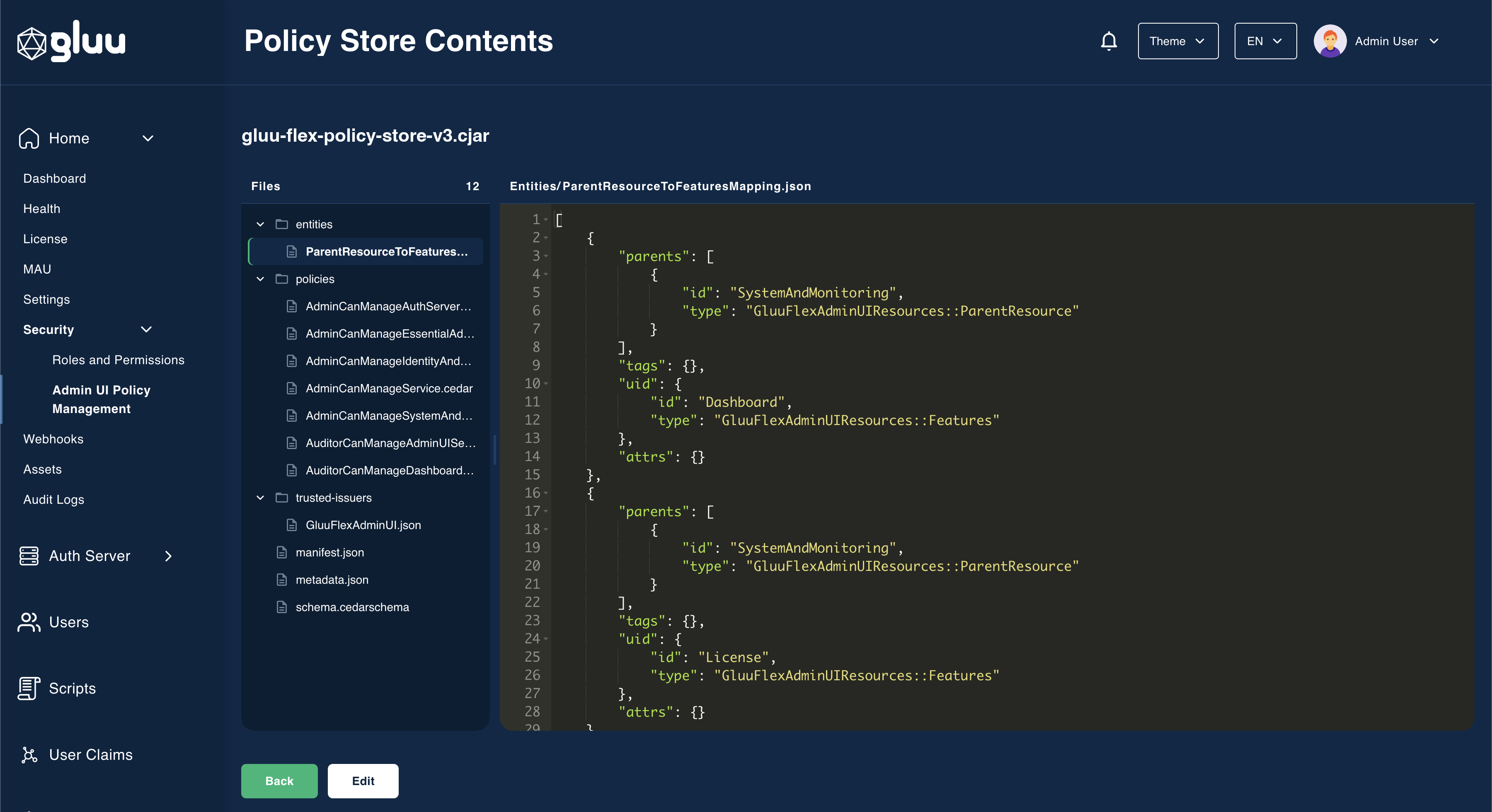
Open shows the Policy Store Contents screen: a file tree of the archive on the left, and the contents of the selected file on the right. Policies, entities, the schema, the manifest and the trusted-issuer definitions are all rendered as text. Binary files are listed but not rendered.
The tree lists folders first, each with a count of the files it holds, then the archive's top-level files under a Store root heading. The count in the Files header covers the whole archive.
Drag the divider between the two panes to widen either side, or focus it and use the left and right arrow keys.
Editing archive contents#
Edit, in the footer of the Policy Store Contents screen, opens the archive for editing. It is available on backup stores only. The active store stays read-only, with a notice explaining that it must be downloaded, edited as a copy and uploaded as a new store.
While editing you can:
- Change the contents of any text file in the archive
- Add a file or a folder with the two controls in the
Filesheader, giving a path such aspolicies/AdminCanManageService.cedarorpolicies - Rename or delete any file or folder with the controls that appear on its row when you hover over it or focus it
Deleting a folder also removes every file inside it. Renaming a folder moves its contents with it, keeping any edits you have already made to them. An empty folder is written into the downloaded archive as a real directory entry, so it survives the round trip.
Changes are held in the browser. The Admin UI does not write them back to the stored archive, so Download is the only way to keep them:
- The viewer header shows
(Not downloaded yet)for as long as the archive has pending changes Downloadpacks the archive, including added and removed files, into a new.cjarand clears the pending changes. The file is named after the store with a date and time stamp, so repeated downloads stay distinguishableCanceldiscards all pending changes and keeps you on the pageBackwith pending changes asks for confirmation before leaving
Download and Cancel stay disabled until something in the archive changes.
To put edited policies into service, upload the downloaded archive as a new policy store and activate it.
Permissions#
The screen requires read access to the Admin UI Security resource. Set active, Delete, Add Policy Store and Edit additionally require write access. Administrators without write access see the list, the download action and the read-only contents viewer.
On screens narrower than 768 pixels the row actions collapse to viewing and downloading.